- Sampler & vocoder
- Adding samples via Wooveconnect
- Levels, VU Metering & monitoring
- Sampling sounds from the audio input
- Skip-back sampling (resampling)
- Vocoder
- Working with slices
- Auto-slicing
- Real-time pitch and time warping
- Amen chop tutorial
- Multi-sampled instruments and percussion
- Using the two sample banks
- Using samples and kits in your songs
- Using single-cycle AKWF samples
- Using Amiga Tracker samples
- Using Teenage Engineering OP-1 / OP-Z sample kits
- Kit and/or master sample initialization
- Backing up sample kits
- Auto-space reclaimer
- Limitations
- Amen chop tutorial
- Set ping-pong mode
Set ping-pong mode
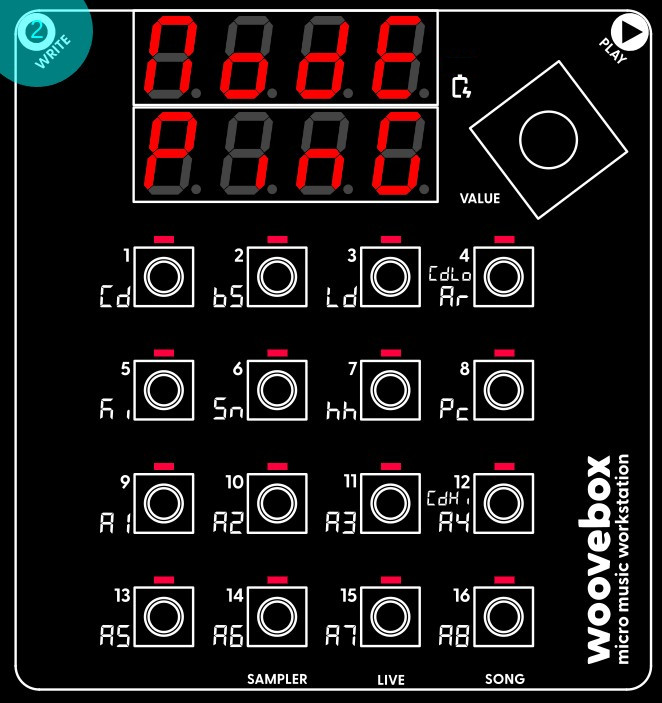
Multi-select all slices (e.g. hold one slice until it fast-blinks, then hold write and let go of the slice you were holding, now - still holding write - select all 16 slices until they all fast-blink).
Still holding write, press the value knob repeatedly to select the 'ModE' parameter. Turn the value knob to set it to 'PinG'. This mode ("ping pong" mode) plays a slice to the end, and then starts playing the slice in reverse until it is back to the start of the slice. It then starts playing forward again, and so on, and so forth.
Combined with each slice playing until the end of the master sample, and playing backwards and forwards continuously, means that you will never run out of audio for the duration of the note/step you program. It will furthermore play fragments of the master sample in reverse, which can add to the sonic complexity of your new break.
Of course, if you wish to deliberately run out of audio, you can use a different slicing mode and/or turn off "ping pong" mode.
Finally, note that instead of multi-selecting and setting all resulting slices to 'PinG', we could have also just set our single master sample's mode to 'PinG' before auto-slicing it instead; auto-sliced slices inherit the mode parameter from the original slice.
You may also be interested in...
- Launch Wooveconnect
Manage songs, samples, audio stems, firmware updates and more through Wooveconnect.
- Advanced (under How to approach)
(crucial to get to the core of the Woovebox) understanding how to use tracks and their patterns in Song mode via fragments.
- Song mode (under Full documentation, guide and tutorial)
Song mode on the Woovebox is so powerful in fact, that even a single pattern per track is enough material to create a complex song with.
- 10. d.V.St Drone Volume End (under DJ page)
Volume of the drone (sine wave) tone at the end of the fragment.
- 9. d.V.St Drone Volume Start (under DJ page)
Volume of the drone (sine wave) tone at the start of the fragment.
- Sampler & vocoder
- Adding samples via Wooveconnect
- Levels, VU Metering & monitoring
- Sampling sounds from the audio input
- Skip-back sampling (resampling)
- Vocoder
- Working with slices
- Auto-slicing
- Real-time pitch and time warping
- Amen chop tutorial
- Multi-sampled instruments and percussion
- Using the two sample banks
- Using samples and kits in your songs
- Using single-cycle AKWF samples
- Using Amiga Tracker samples
- Using Teenage Engineering OP-1 / OP-Z sample kits
- Kit and/or master sample initialization
- Backing up sample kits
- Auto-space reclaimer
- Limitations