- Wooveconnect
- Setting up a MIDI connection
Setting up a MIDI connection
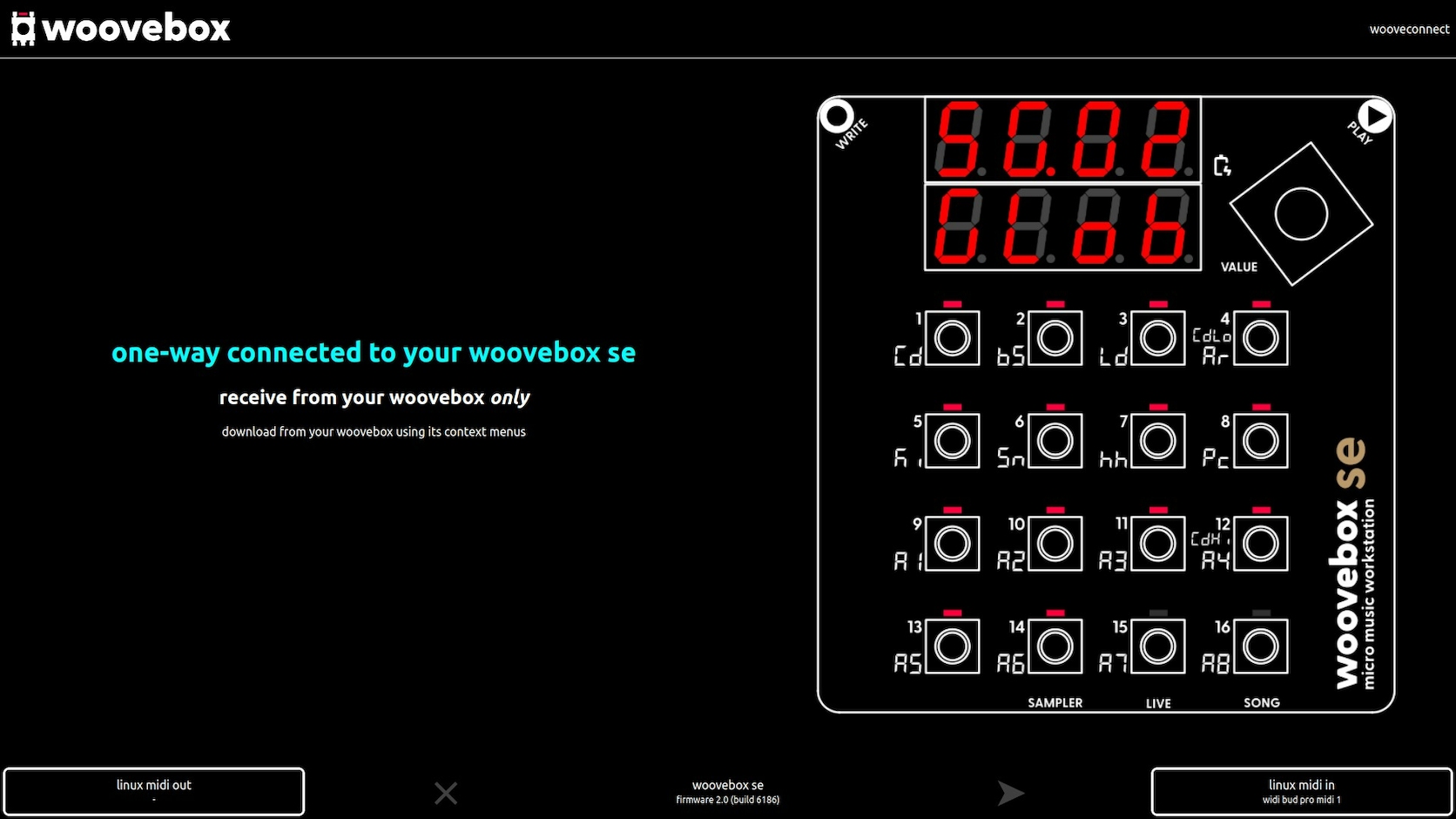
Wooveconnect works on any browser that supports WebMIDI. This includes Google Chrome, Microsoft Edge, Opera and Firefox. Please note that Wooveconnect does not work on any browser that use Apple's Safari engine (most iOS browsers) due to Apple's refusal to implement WebMIDI support. Firefox on macOS may also not support WebMIDI out of the box.
WebMIDI access needs to be allowed/enabled in your browser for connect.woovebox.com. A permissions dialog usually pops up the first time you launch Wooveconnect. If it does not, try refreshing the site with SHIFT+CTRL/CMD+R, resetting permissions (typically by clicking/tapping the settings icon next to the URL in the address bar, or by going into your browser's settings, finding site settings under privacy/security settings, and changing the relevant permissions for connect.woovebox.com).
If using wireless MIDI, Wooveconnect will attempt to automatically detect your Woovebox and attach to the right ports. To manually select the input and/or output ports, click on the bottom right and left buttons respectively.
If you need to pair your Woovebox via Bluetooth, please see these instructions for various operating systems.
Wooveconnect can work in send-only (using one MIDI output), receive-only (using one MIDI input) or mixed bi-directional modes (using a wireless or physical MIDI input, in conjunction with another wireless of physical MIDI output).
Once established, bi-directional connections on firmware 1.0 3157+, are automatically protected against by packet loss. Furthermore, the port selection interface will disappear to make more room for other UI elements.
You may also be interested in...
- Restoring sample kits (under Wooveconnect)
In both cases, please note that this will overwrite any previous sample kit in the selected kit number.
- Firmware SYX (under Firmware updates)
- Android (under Pairing your Woovebox to a host)
Please use the Wooveconnect app in the Google Play store.
- Uploading new samples (under Wooveconnect)
You may add samples to sample kits, by simply dragging and dropping them into Wooveconnect.
- Turning off Wooveconnect CC messages (under Connecting other gear; MIDI, Sync, and audio pass-through)
Device mirroring is off by default, unless the device was booted up with Bluetooth MIDI enabled.