- Full documentation, guide and tutorial
- Learning the Woovebox
- The very basics
- Quick start tutorial
- Tempo and BPM
- Tracks
- Patterns
- Live pattern recording
- Conditional triggering and modification
- Chords
- Arpeggios
- Scales and modes
- Genres
- Patches and Presets
- Sound design
- DNA dynamic patch cross-breeding
- Paraphonic parts
- Multi-instrument mode
- Risers, fallers, sweeps & ear candy
- Live mode
- Song mode
- Full song writing
- Sampler & vocoder
- Mixing & Mastering
- Lo-fi & vintage analog and digital emulation
- Randomization
- Hall effect sensor playing
- Advanced techniques
- Undo
- Boot modes
- Connecting other gear; MIDI, Sync, and audio pass-through
- Remote control expander mode
- Wireless MIDI over Bluetooth
- Connecting Bluetooth typing keyboard/touchpad
- Battery and charging
- Hardware quirks and limitations
- Understanding DSP load
- Looking after your Woovebox
- Firmware updates
- Tracks
- Pages
Pages
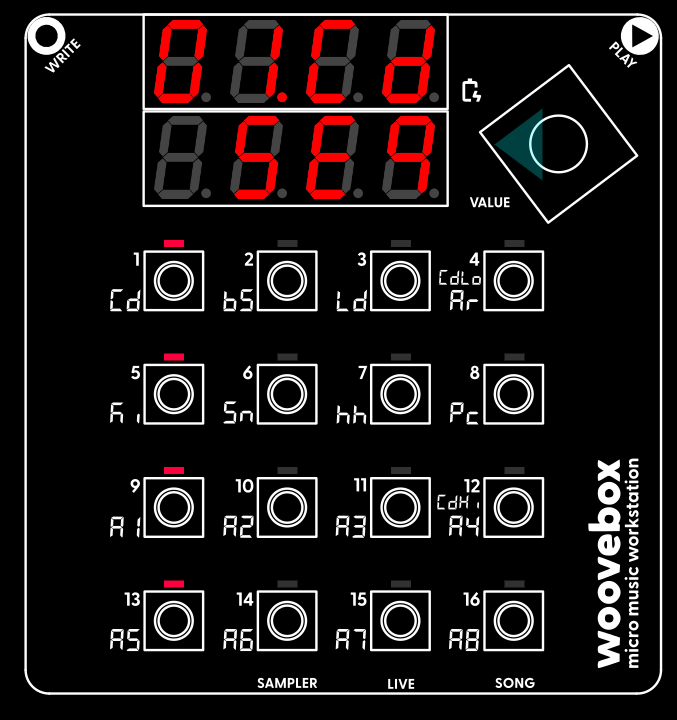
Each track has multiple pages, where different aspects of the track can be modified. These pages are accessed by turning the value knob left or right. Turning the value knob to the right will scroll through the other pages, covering everything from sound design to side chaining and patch presets.
Sequencer
The "left-most" page is always the Sequencer ("Seq") page, where you can edit the steps of the currently selected pattern. This is the most important page where a pattern's steps can be modified in detail. This page shows which steps currently have notes assigned to them via the LED grid, whereas most other pages show which 1-16 buttons have parameters behind them that you can modify.
Note that in pages other than the Sequencer ("Seq") pages, holding down write temporarily reveals which steps currently have notes assigned to them, as if you were on the Sequencer ("Seq") page. Letting go of write will once again show which 1-16 buttons have parameters behind them that you can modify.
Patch (and selecting presets)
The "right-most" page is the Patch ("Pach") page, where you can select preset patches and - through the context menu - perform things like backing up patches, or copying them to other tracks.
Holding any button with lit up LED and then turning the value knob, will load a preset. Note that you can, for example, load a Ki (kick category) patch onto, say your 3/Ld/Lead track if you so wish.
You may also be interested in...
- AI DSP resource allocation optimizer (under Understanding DSP load)
Once trained on your song or patterns, the optimizer can reduce DSP loads by ~10% in typical cases.
- MIDI In (under Connecting other gear; MIDI, Sync, and audio pass-through)
Your Woovebox responds to note velocity, and responds to both "velocity 0" and note off messages to turn off notes.
- Example (under Sidechaining)
- Ducking (under Dynamics, Sidechaining, Gating, Ducking, Compression and Transient Shaping)
- 7. Sd.At Sidechain Attack (under Dynamics Page)
Specifies how slow/fast sidechaining should kick in for this track.
- Full documentation, guide and tutorial
- Learning the Woovebox
- The very basics
- Quick start tutorial
- Tempo and BPM
- Tracks
- Patterns
- Live pattern recording
- Conditional triggering and modification
- Chords
- Arpeggios
- Scales and modes
- Genres
- Patches and Presets
- Sound design
- DNA dynamic patch cross-breeding
- Paraphonic parts
- Multi-instrument mode
- Risers, fallers, sweeps & ear candy
- Live mode
- Song mode
- Full song writing
- Sampler & vocoder
- Mixing & Mastering
- Lo-fi & vintage analog and digital emulation
- Randomization
- Hall effect sensor playing
- Advanced techniques
- Undo
- Boot modes
- Connecting other gear; MIDI, Sync, and audio pass-through
- Remote control expander mode
- Wireless MIDI over Bluetooth
- Connecting Bluetooth typing keyboard/touchpad
- Battery and charging
- Hardware quirks and limitations
- Understanding DSP load
- Looking after your Woovebox
- Firmware updates