- Full documentation, guide and tutorial
- Learning the Woovebox
- The very basics
- Quick start tutorial
- Tempo and BPM
- Tracks
- Patterns
- Live pattern recording
- Conditional triggering and modification
- Chords
- Arpeggios
- Scales and modes
- Genres
- Patches and Presets
- Sound design
- DNA dynamic patch cross-breeding
- Paraphonic parts
- Multi-instrument mode
- Risers, fallers, sweeps & ear candy
- Live mode
- Song mode
- Full song writing
- Sampler & vocoder
- Mixing & Mastering
- Lo-fi & vintage analog and digital emulation
- Randomization
- Hall effect sensor playing
- Advanced techniques
- Undo
- Boot modes
- Connecting other gear; MIDI, Sync, and audio pass-through
- Remote control expander mode
- Wireless MIDI over Bluetooth
- Connecting Bluetooth typing keyboard/touchpad
- Battery and charging
- Hardware quirks and limitations
- Understanding DSP load
- Looking after your Woovebox
- Firmware updates
- Quick start tutorial
- Switch to the kick drum track
Switch to the kick drum track
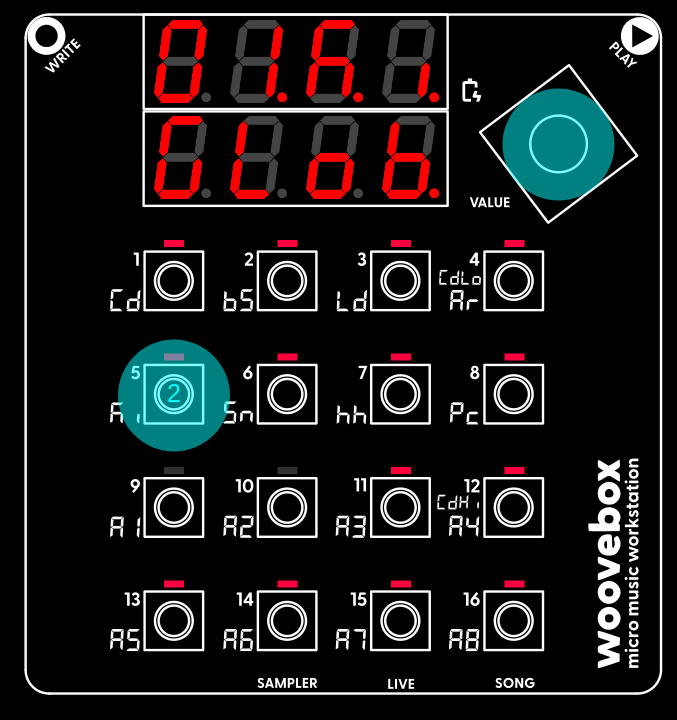
Let's program our first sounds.
Hold the value button and short-press the 5/Ki button. This switches to the kick drum (Ki) track. By default, it switches to pattern 01 of the track and shows the first page of the track; the sequencer ("SEq") page. Please note that each of the sixteen tracks have their own sixteen patterns (and not the reverse, as seen on some grooveboxes).
In the same way, you can switch to other tracks (hold value + short-press 1/Cd-13/A5), to the Sampler (hold value + short-press 14/A6/SAMPLER), to Live mode (hold value + short-press 15/A7/LIVE), or back to Song mode (hold value + short-press 16/A8/SONG) where we were before. Track A6-A8 are accessible by holding value + long-pressing (instead of short-pressing!) 14/A6-16/A8, for a total of 16 tracks.
Now, on the Ki track, playing key 1-16 will sound variations of the currently selected kick drum patch.
If you don't like the current kick drums, you can select another preset on the patch ("Pach") page. To do so, turn the value knob to the right until you find the last page ("Pach"). Then, just like we did when setting the song's BPM before, hold one of the keys with lit up LEDs and turn they knob to select a different "setting" (preset). Kick presets live under the 5/Ki button, but you are free to select, say, a Lead (3/Ld) preset on the kick track if you wish. You may even randomize a brand new patch through the context menu ("rand Pach").
Now return to track's sequencer("SEq") page. There is a convenient shortcut to the "Seq" page; on any page other than the "Seq" page, short-press the value knob. Short-press the value knob again to quickly go back to the page you came from. This shortcut allows you to quickly flip back and forth between the "Seq" page and some other page. Give it a try.
Know that if you're new to music production or sound design, you can mostly just ignore the pages between the "SEq" page and the "Pach" page for now. Just have fun with the basics first!
You may also be interested in...
- Glob (song globals) page (under Song-wide settings)
- Reverb (under Global Send Multi-effects)
This ensures a sound playing on a track is not drowned out by its own reverb.
- 13. Gb.du Global Multi-FX Ducking (under Dynamics Page)
This setting can be used to prevent a track's sound from getting lost in the song's general delay or reverb.
- 6. Sd.Gt Sidechain Gate (under Dynamics Page)
- 5. Sd.dP Sidechain Depth (under Dynamics Page)
- Full documentation, guide and tutorial
- Learning the Woovebox
- The very basics
- Quick start tutorial
- Tempo and BPM
- Tracks
- Patterns
- Live pattern recording
- Conditional triggering and modification
- Chords
- Arpeggios
- Scales and modes
- Genres
- Patches and Presets
- Sound design
- DNA dynamic patch cross-breeding
- Paraphonic parts
- Multi-instrument mode
- Risers, fallers, sweeps & ear candy
- Live mode
- Song mode
- Full song writing
- Sampler & vocoder
- Mixing & Mastering
- Lo-fi & vintage analog and digital emulation
- Randomization
- Hall effect sensor playing
- Advanced techniques
- Undo
- Boot modes
- Connecting other gear; MIDI, Sync, and audio pass-through
- Remote control expander mode
- Wireless MIDI over Bluetooth
- Connecting Bluetooth typing keyboard/touchpad
- Battery and charging
- Hardware quirks and limitations
- Understanding DSP load
- Looking after your Woovebox
- Firmware updates